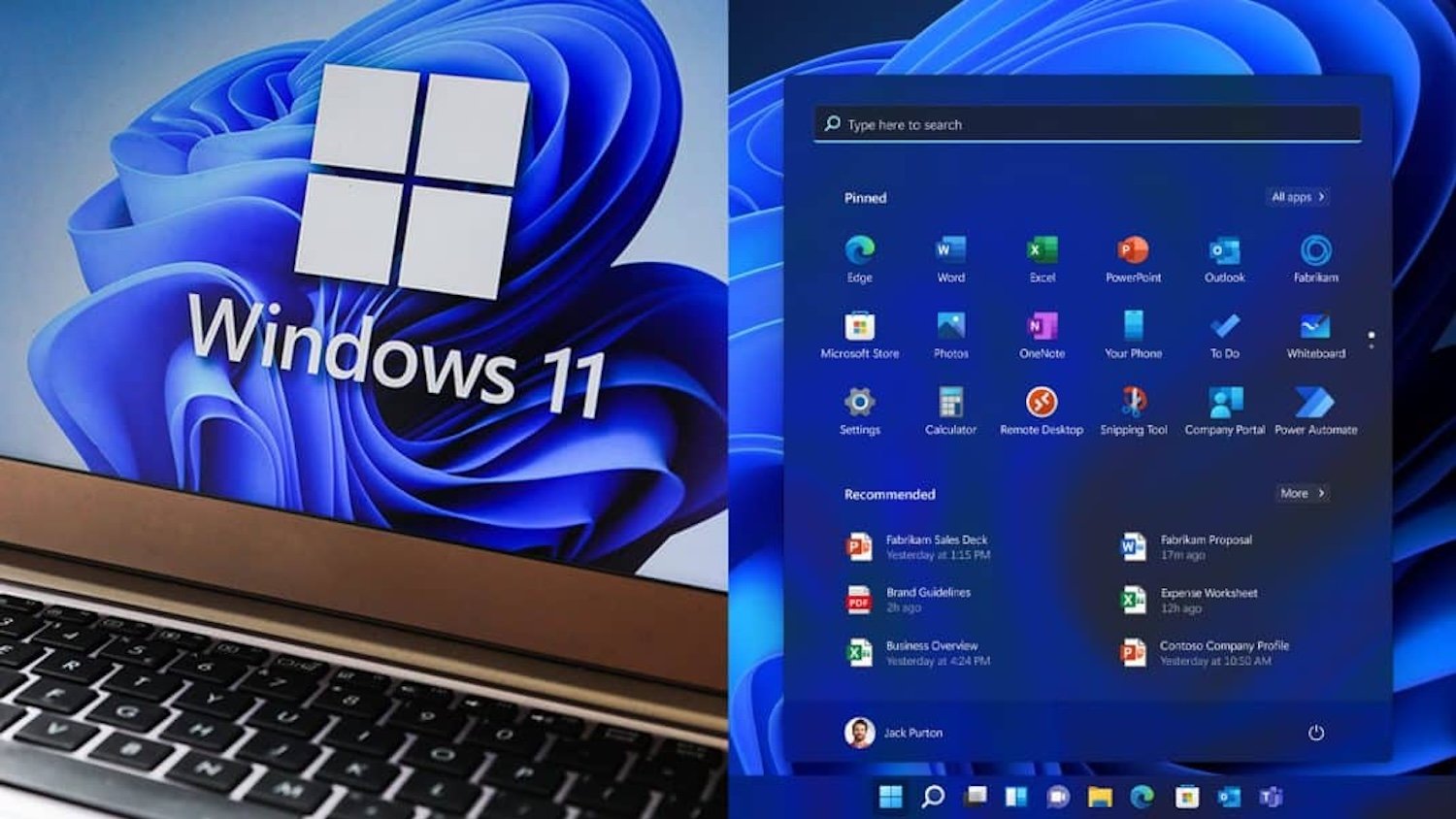
The end of Windows 10 is just around the corner. Microsoft has officially announced that it will stop supporting Windows 10 on October 14, 2025. That means no more security patches, bug fixes, or updates. While there is an option to pay for extended security updates, most users will be better off upgrading to Windows 11.
If you’ve been putting off the upgrade, maybe because of concerns about compatibility issues or the effort involved, now is the right time to act. Here’s how to safely transition your PC to Windows 11, and what to do if you’re considering an alternative like Linux.
Start With a Backup
Before you even think about installing a new operating system, it’s important to back up your data. Although upgrades usually go smoothly, there’s always a chance something could go wrong. Backing up ensures that you won’t lose important documents or personal files if something unexpected happens.
You can either manually copy your files to an external hard drive or use the built-in Windows Backup feature to create a full system backup. To do this, open the Start menu, type “backup” into the search bar, select “Windows Backup” from the list, and follow the instructions. Make sure your external drive is connected and selected as the backup destination.
Some people prefer to go the extra mile by creating two backups, one on an external drive and one in the cloud. Microsoft offers 5GB of free storage through OneDrive, which you can use if you don’t have a second drive. Once the backup is complete, disconnect your external device and keep it in a safe place.
Upgrading to Windows 11
Once your files are safely stored, you can move on to installing Windows 11. There are two main ways to do this.
The simplest method is to upgrade directly from Windows 10. Open the Start menu, go to Settings, then Update & Security, and you should see an option to upgrade to Windows 11. This method keeps your files, apps, and most settings in place, which makes the process faster and easier.
If your computer is a bit older or you’ve experienced issues with past upgrades, you might want to consider doing a clean installation. This approach wipes your entire system and installs Windows 11 from scratch. It’s a more thorough method that can prevent old settings or incompatible drivers from causing problems with the new operating system.
To do a clean install, you’ll need a USB flash drive with at least 8GB of free space. Download the Media Creation Tool from Microsoft’s official website and use it to create a bootable installer on the USB drive. Make sure you’re logged in with administrator rights. Once the installer is ready, leave the USB plugged in.
To begin the installation, restart your computer while holding the Shift key to enter the Windows Recovery Environment. From there, select the option to boot from the USB drive. During the installation process, you’ll be asked whether you want to keep your files or start fresh. If you’re aiming for a clean install, choose the option that installs Windows only and deletes your current data.
If you made a full system backup earlier, you’ll have the chance to restore it during the installation. If you only saved specific files manually, you can copy them back once Windows 11 is installed and running.
Why Clean Installs Might Be a Better Choice
Windows has a long history of occasional bugs and compatibility issues, which have caused frustrations for many users over the years. Although Windows 11 is generally stable, a clean installation can reduce the risk of running into those problems. It gives you a fresh start and eliminates leftover files or outdated drivers that could cause trouble. However, for most users, upgrading through the system settings is easier and usually works without a hitch.
Thinking About Alternatives? Linux Could Be the Answer
If you’re really not interested in switching to Windows 11, you shouldn’t continue using Windows 10 once support ends. Without updates, your system becomes vulnerable to malware, hacking, and other security risks.
Installing macOS on a non-Apple machine isn’t practical or officially supported, but Linux is a very real option. It’s open-source, free, and widely considered stable. It also has a growing number of user-friendly distributions that make the transition from Windows much less intimidating than it used to be.
Before making the switch, keep in mind that some Windows applications don’t work on Linux. That said, most people can find alternatives for everyday tasks. For example, LibreOffice can replace Microsoft Word and Excel, and GIMP is a powerful free alternative to Photoshop. You can also use Microsoft Office online through a browser.
If you’re new to Linux, two of the best options for beginners are Linux Mint and Ubuntu. Both are free, receive regular updates, and have strong community support. If you’re curious and want to explore Linux further, there are plenty of resources available to help you get started.
The Bottom Line
Whichever route you choose, one thing is clear: staying on Windows 10 after support ends is not a good idea. Whether you upgrade to Windows 11 or switch to Linux, taking the time to prepare your system properly will make the transition much smoother and safer. It might seem like a hassle now, but it’s better than dealing with the consequences of an unprotected system down the line.